


Migrating from the App Store rcmd
If you previously installed rcmd from App Store, these are the steps needed to migrate to this version:
- delete
rcmd.appusing Finder (don't delete using Launchpad or app cleaners, we need to keep settings around) - download rcmd.dmg from this page
- open the DMG and move
rcmd.appin Applications - launch rcmd
What will happen next:
- the old settings will be migrated to the new version (old settings are kept intact in case you want to go back to the App Store version)
- a 14-day trial starts with the Pro features enabled
- after 14 days, the app keeps working in Free mode
License transfer
There's no license transfer needed because rcmd now has a free tier which has the same features that were in the App Store version.
You would only need to pay if you want to use the newly added Pro features.
What are Stages and how do they work?
A Stage is a set of apps and windows saved as a workspace and assigned to a letter that can be used to restore those windows later.
Note: not related to Stage Manager, the macOS native functionality. It’s a similar take on the idea but with more flexibility.
The default trigger key for Stages is capslock so we’ll use that in the following examples. It can be changed in Settings.
Saving a Stage
Press capslock-equal and the current set of visible apps will be captured as a Stage.
A dialog will appear that allows you to:
- assign a letter to this Stage
- give it a name
- add or remove windows from the stage
- configure where the windows should be placed (screen, size, position) like left half of the builtin screen
- configure what file/folder/URL the window opens (e.g. a project folder in VSCode and Terminal, a specific webpage in Chrome)
Restoring a Stage
Press capslock-letter and the apps and windows of that Stage will open with their configured file/folder/URL on the screen and position you saved.
In Multi-Space Mode, the Stage will be opened on an empty Space that gets assigned to it.
Activating a Stage
Whenever you’re on an app that isn’t belonging to the opened Stage, you can again press capslock-letter to reactivate that Stage, which will bring its windows to the front.
You can switch between Stages this way: press capslock-W to focus the Work Stage, capslock-P to focus the Personal Stage. Apps from both stages stay open, they just get shown or hidden based on what you want to focus on.
Closing a Stage
When you’re done working with a set of windows and you want to close them, press capslock-minus
This closes only the windows belonging to that stage leaving everything else open. The action can also be configured to minimize the windows instead of closing them.
Caveats
Not all apps allow windows to be saved and restored fully.
Native apps like Pages, Safari, Terminal make it easy to get their current open document or webpage for reopening it later.
Other apps suffer from one of two issues:
- no way to capture their current state
- or no way to restore that saved state
Because of this, some apps may open with an empty window when restored, or with additional unwanted windows.
If possible, we’ll try to implement custom support for those apps, so let us know on Discord about them.
How rcmd integrates with macOS Spaces
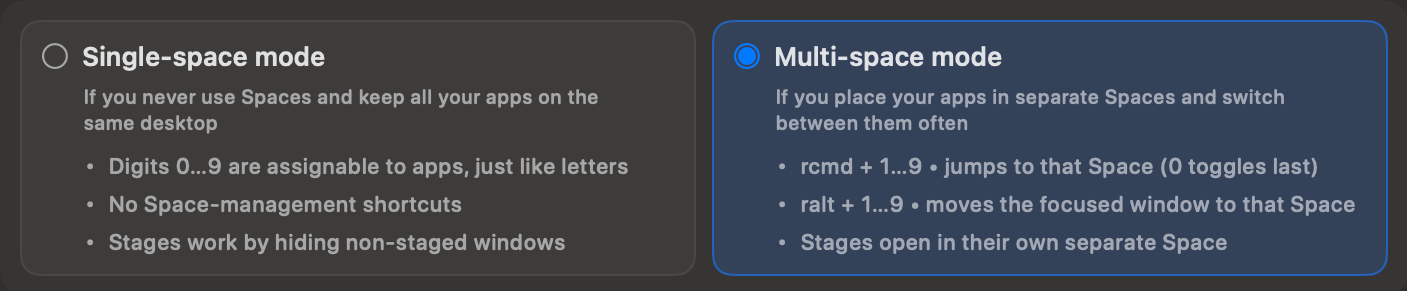
rcmd comes with two modes of integration: Single-space mode and Multi-space mode
Single-space mode
Basically no integration, rcmd becomes mostly unaware of macOS Spaces.
If you're comfortable with doing things on the same Space, this has several advantages:
- numbers can be assigned to apps (e.g. rcmd-1 for 1Password)
- you don't have to deal with focus annoyances caused by how Spaces are managed by macOS
- apps and windows focus instantly and predictively
In this mode, Stages work by hiding every non-stage window when activating, but they still open on the same Space.
Multi-space mode
In this mode, rcmd is Space-aware and can control them in a few ways:
rcmd-1-9switches to the Space with that numberralt-1-9moves the active window to that Space- Stages open in their own empty Space (or at least do their best)
With Instant Space Switching rcmd can make Spaces feel as fast as single-space, but with real compartmentalization.
This enables a few other ergonomics:
- Cmd-Tab can cycle through windows of the active space
- Available and active Space numbers can show in the menubar
- Creating a new Space is easily done with
rcmd-next number(if you have 3 spaces, pressrcmd-4to create the 4th space) - Focusing an app with more than one window, will focus the window on the active space
Focus problems
Because macOS doesn't have an API for Spaces, the system maintains full control over them and how they influence window focus.
So when switching apps, macOS might force switch to another Space than you want. rcmd will try to recover from that in less than a second, but the flicker will happen and will be annoying.
Placement problems
When opening Stages, rcmd will try to open them or force move them to the correct Space. That doesn't always work.
If the app was closed while being on a specific Space, macOS could have memorized that and will force it on the next window open. So some windows might need manual moving from time to time.
How can I see app logs?
You can do that either through Console.app or through the log Terminal command.
Terminal
Streaming logs for viewing:
log stream --level debug --source --style compact --predicate 'subsystem BEGINSWITH "com.lowtechguys.rcmd"'
Streaming and collecting logs to a file:
log stream --level debug --style compact --predicate 'subsystem BEGINSWITH "com.lowtechguys.rcmd"' | tee ~/Desktop/rcmd.txt
Console.app
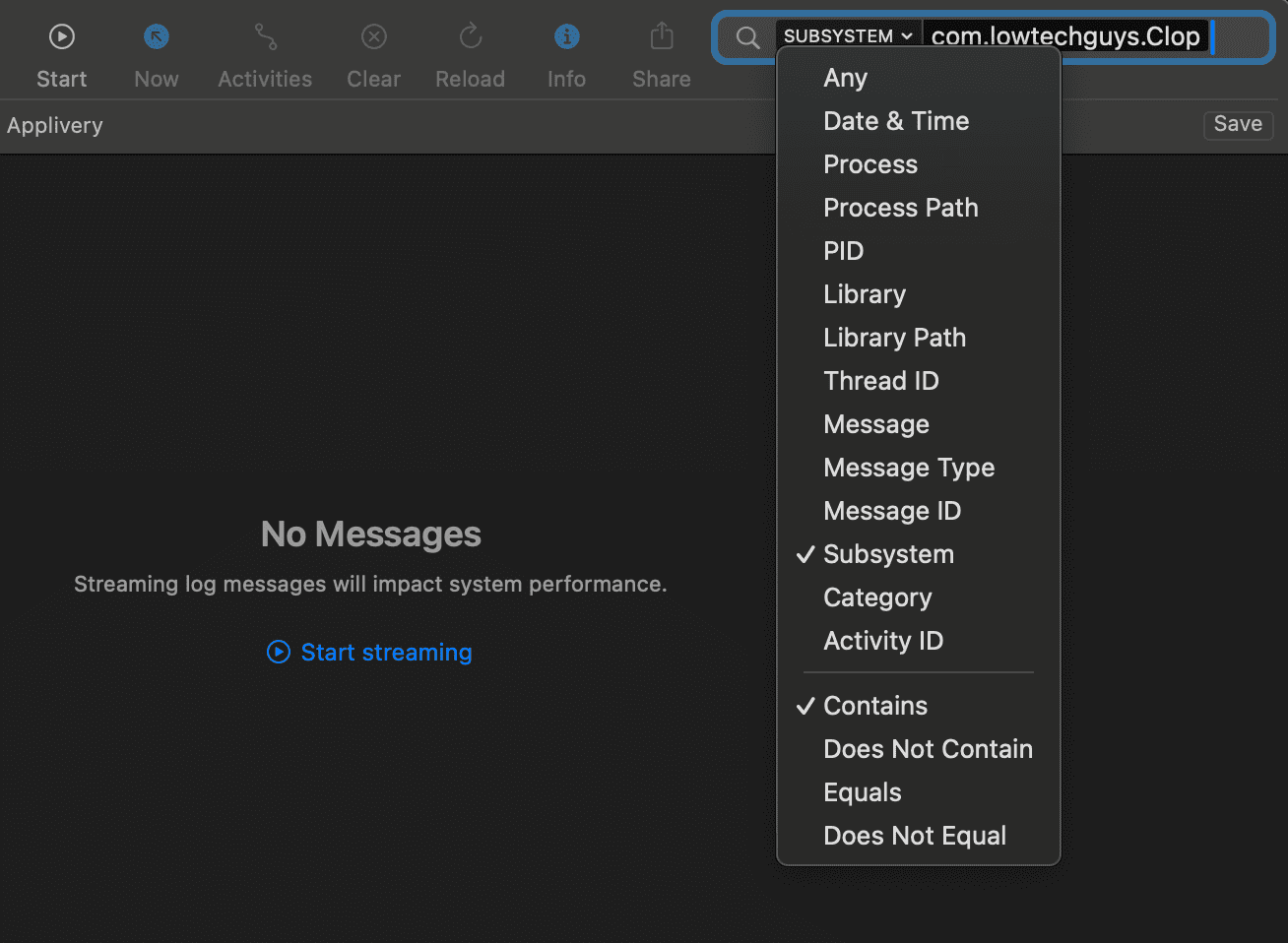
- Write
com.lowtechguys.rcmdin the search bar and pressEnter - Click on
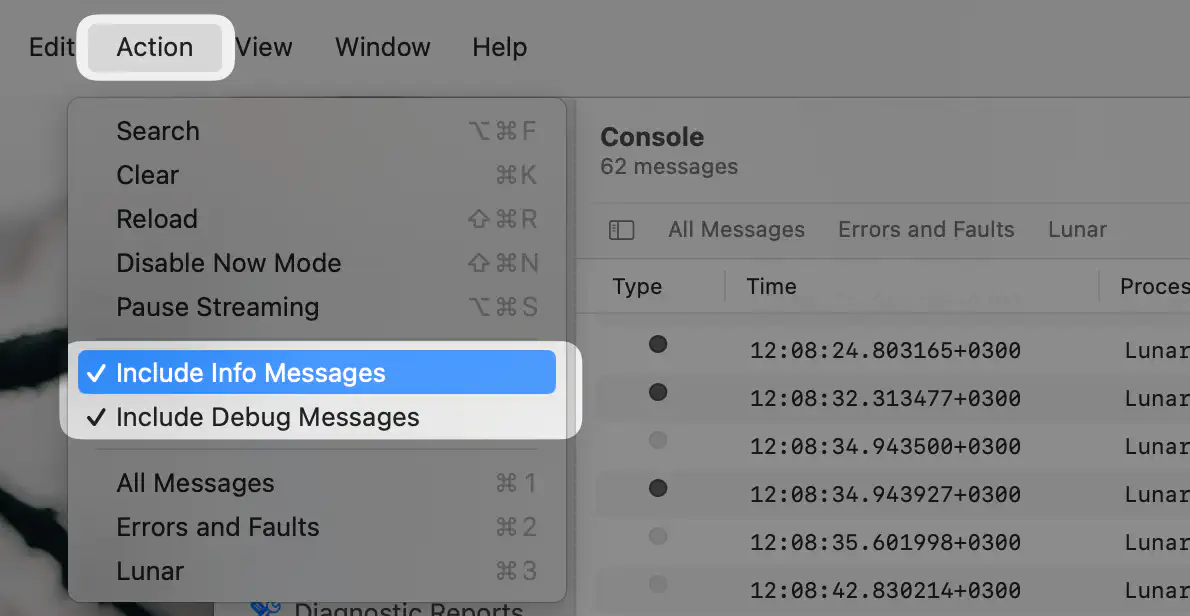
Anyand chooseSubsystem - Make sure
InfoandDebugmessages are enabled in theActionmenu - Start streaming logs
Saving Console logs
In the Console window, select 1 log line, then press Cmd-A and Cmd-C to copy all log lines to clipboard.
After that you can press Cmd-V to paste it in a Discord chat, the Contact form or in an editor like TextEdit to save it to a file.
License doesn't stay activated
Possible causes
- Tampered bundle (usually because of app cleaners deleting files from inside the app)
- App can't access internet (usually because of LuLu or Little Snitch, or VPN/DNS)
- Corrupt license files
Resetting app and license files
- delete the license files from
~/Library/Application Support/rcmd/ - delete the app from
Applications - restart the app and retry activating
First quit the app before doing any of these changes.
To delete the license files, press
Cmd-Shift-Gin Finder, paste this path and press Enter:~/Library/Application Support/rcmd/Delete the files in that folder.
Re-download the app, open the DMG and move it to
Applicationsreplacing the existing app.Launch the app and activate.
Make sure Paddle can be reached
Paddle is the licensing provider that rcmd is using.
If the issue persists, try checking if Paddle's servers are reachable by your Mac. Ensure the following domains are not blocked in your network:
paddle.compaddleapi.comv3.paddleapi.com
For example, loading v3.paddleapi.com/3.2/license/verify in a browser (or with curl) should show a response like the following:
{
    "success": false,
    "error": {
        "code": 102,
        "message": "Unable to authenticate"
    }
}
If it shows a browser error or if it keeps loading continuously, then the domain is blocked and that's preventing activation and license checking.
Firewalls
Try disabling LuLu, Little Snitch or try adding rcmd to the exclusion list of these firewalls.
Why does rcmd need the Screen Recording permission?
rcmd uses it to read the titles of your open windows. The window switcher, Stages and the window previews all rely on those titles.
Since macOS Catalina, reading another app's window title is only possible with the Screen Recording permission, so any app that works with windows has to ask for it.
rcmd does not record or capture your screen. It only reads window titles so it can list and switch between your windows.